AI Photography Editing Software
Edit, organize, style, and share your photos easily and quickly with our photography editing software! Our AI photography software provides everything you need for professional-level photo editing and seamlessly integrates with your existing workflow.
What Photo Editing Software Do You Need?
Our AI photography software works as either a standalone application or as a plugin to your existing photo editing software. You can choose which solution works best for your needs.
I'm not currently using an application like Adobe Lightroom or Photoshop OR I'm looking to make a switch away from my current workflow.
I'm already using a host application like Lightroom, Photoshop, Capture One, Affinity Photo, or Apple Photos and am looking to add to my workflow.
The Ultimate Photo Editing Software from A to Z
ON1 Photo RAW is like having Lightroom and Photoshop in one application. It includes everything you would need to edit your photos without ever owning another piece of photo editing software. Photo RAW includes all of our modules (the plugin technologies below) integrated into the application.

ON1 Photo RAW 2024.3
The hassle-free professional raw photo editor, organizer, layered editor, and effects app.
ON1 Professional Plugins Add the X, Y, and Z
The ON1 plugins are perfect for adding a finishing effect, removing noise, upscaling photos, creating HDR, or portrait retouching. ON1 plugins work at a level of integration no other plugin does, including working with multiple photos in editing, keeping photos re-editable across applications, or batch processing photos.
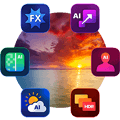
Photo RAW MAX 2024.3Use Photo RAW and its tools — Develop, Effects, Portrait AI, Sky Swap AI, NoNoise AI, HDR, and Resize AI — as a plugin with Adobe Photoshop, Lightroom Classic, Apple Photos, Affinity Photo, and more.
 Sky Swap AI 2023.5
Sky Swap AI combines machine learning with amazing curated skies to remove the need for complex masks and layers that are needed in other editing apps.
 Resize AI 2023.5
The next-generation photo enlargement software gives photographers the best results and the highest quality photo enlargements.
 Effects 2023.5
Hundreds of built-in photo effects, filters, LUTs, borders, textures, and presets — all completely customizable to your style.
 NoNoise AI 2024
The new standard for quality and speed for removing image noise intelligently removes image noise by leveraging AI-based machine learning.
 Portrait AI 2023.5
Flawless retouching is just a click away with ON1 Portrait AI. Machine learning finds every face in your photo and makes them look great, automatically.
 HDR 2023.5
Create flawless, natural HDR photos, that combine the highlight and shadow details from a bracket of exposures, in the blink of an eye.
With ON1 you can choose to purchase the photography editing software (own it outright) or subscribe. A major benefit of the subscription plans is that you get all five ON1 plugins in addition to Photo RAW, allowing you to launch many ON1 apps including Resize AI, Effects, NoNoise AI, Portrait AI, and HDR from other host applications like Photoshop, Lightroom, Capture One, and more.
Best Value

ON1 Everything Plus
Subscription
On Sale!
Prepaid YearlyBest Value
Billed MonthlyMost Flexible
Includes all major version updates, all major future upgrades, new apps, & activation on 5 computers
What's Included:

ON1 Photo RAW MAX 2024.3

ON1 Plugins & Standalones

ON1 Cloud Sync - 1 TB

ON1 Plus Membership

ON1 Everything
Subscription
On Sale!
Prepaid YearlyBest Value
Billed MonthlyMost Flexible
Includes all major version updates, all major future upgrades, new apps, & activation on 2 computers
What's Included:
ON1 Photo RAW MAX 2024.3
ON1 Plugins & Standalones
ON1 Cloud Sync - 200 GB
Incredible Value • Always Up-to-Date
30-Day Money-Back Guarantee